Windows Local Deployment Guide
On this page
📖 Overview
This document provides detailed instructions for deploying LightX2V locally on Windows environments, including batch file inference, Gradio Web interface inference, and other usage methods.
🚀 Quick Start
Environment Requirements
Hardware Requirements
- GPU: NVIDIA GPU, recommended 8GB+ VRAM
- Memory: Recommended 16GB+ RAM
- Storage: Strongly recommended to use SSD solid-state drives, mechanical hard drives will cause slow model loading
🎯 Usage Methods
Method 1: Using Batch File Inference
Refer to Quick Start Guide to install environment, and use batch files to run.
Method 2: Using Gradio Web Interface Inference
Manual Gradio Configuration
Refer to Quick Start Guide to install environment, refer to Gradio Deployment Guide
Legacy Bundle: One-Click Gradio Startup
The download and usage instructions below apply to the legacy bundle. See Gradio-Lightx2v for the separate application. A corresponding new bundle has not been provided; the environment below is not a verified deployment of the new application.
📦 Download Software Package
📁 Directory Structure After extraction, ensure the directory structure is as follows:
├── env/                        # LightX2V environment directory
├── LightX2V/                   # LightX2V project directory
├── start_lightx2v.bat          # One-click startup script
├── lightx2v_config.txt         # Configuration file
├── LightX2V使用说明.txt         # LightX2V usage instructions
├── outputs/                    # Generated video save directory
└── models/                     # Model storage directory
⚠️ Note for RTX 50 Series GPU Users: We provide a dedicated runtime environment. Please download from Quark Cloud, extract and replace the env/ directory in the software package.
📥 Model Download:
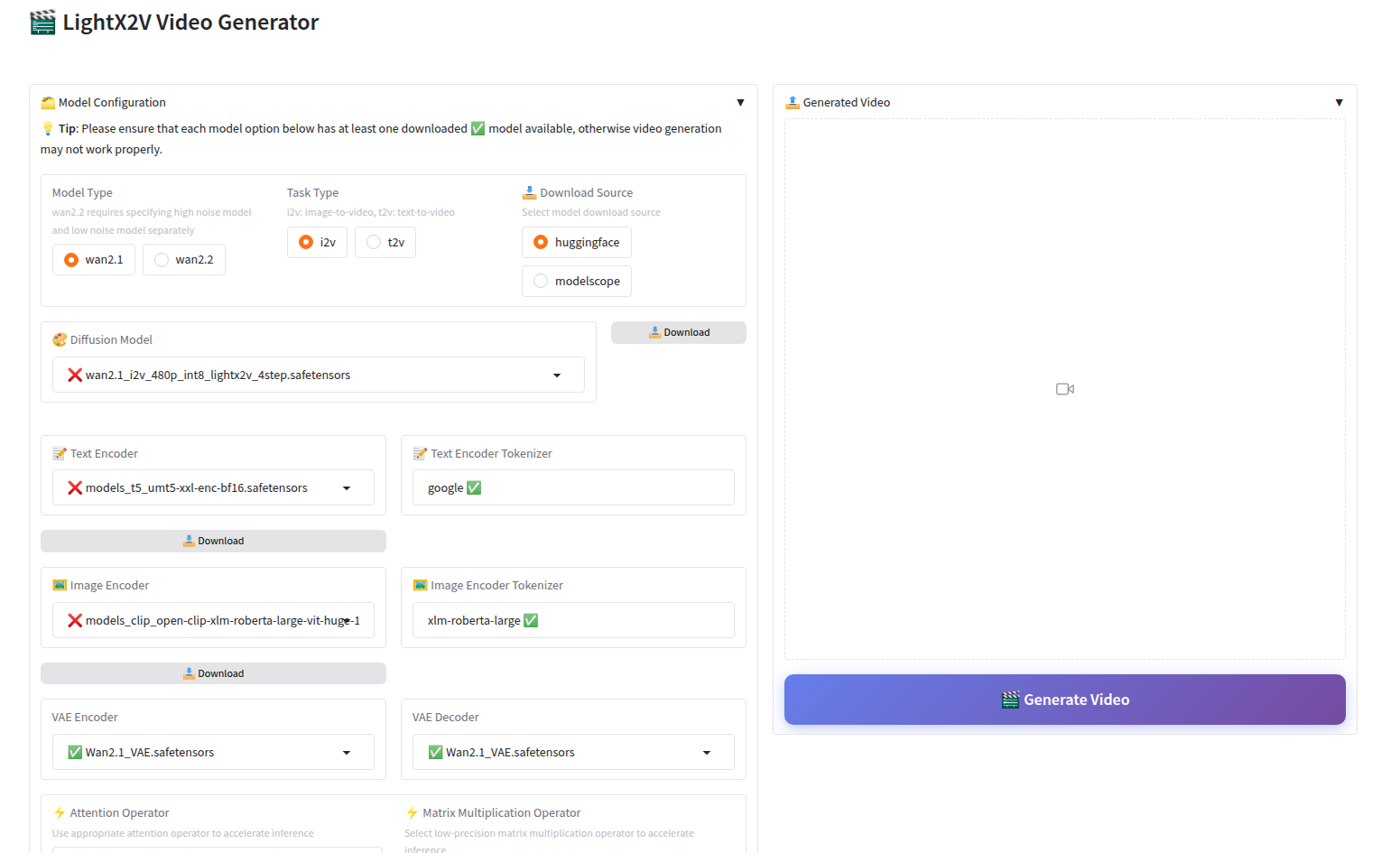
You can directly download from the Gradio frontend, with two download sources provided: HuggingFace and ModelScope. You can choose according to your situation, or refer to the Model Structure Documentation to manually download.
📋 Configuration Parameters
Edit the lightx2v_config.txt file and modify the following parameters as needed:
# Interface language (zh: Chinese, en: English)
lang=en

# Server port
port=8032

# GPU device ID (0, 1, 2...)
gpu=0

# Model path
model_path=models/
🚀 Start Service
Double-click to run the start_lightx2v.bat file, the script will:
- Automatically read configuration file
- Verify model paths and file integrity
- Start Gradio Web interface
- Automatically open browser to access service
⚠️ Important Notes:
- Display Issues: Follow the bundled instructions for the legacy environment. The separate application uses Gradio 5.50.0; see its repository for installation.